Data visualization using ChatGpt and Tableau

Advertisements

With the development of data analysis tools and software, users of Tableau visualizations can save time and effort by taking advantage of the integration between ChatGpt and Tableau, thus automating processing with more flexibility.

How is that done? This is what we will explain in our article today, let’s get started

As we mentioned, the process will be done using the ChatGPT application. What is the concept of this application?

We will not go into complex technical details that explain the mechanism of action of this application, as this is not our topic today, and we may devote a detailed explanation to it in the coming days, but what we are interested in explaining now is what serves the topic we are talking about, which is integration with Tableau functions

ChatGPT is a conversational bot based on artificial intelligence with its amazing capabilities in conducting conversations and interacting with questions and inquiries in a linguistic manner similar to the nature of human reaction and you can use it in a variety of functions and inquiries including data visualization which is the focus of our topic for this day

First we need to install the OpenAI API as a first step to start using ChatGBT and then authenticate our credentials using JavaScript and entering the following code:

Once this process is complete, we can use ChatGpt to create visualizations in Tableau

Why is ChatGPT integration important to Tableau functionality?

In short, the basic necessity of this integration process is that it allows answering the most difficult questions and inquiries in an easy way and in natural language, and through which we can Tableau visualize these answers

Also, through this integration process, we can create interactive dashboards that help users find solutions to their inquiries in a timely manner, and thus their ability to identify patterns in their data and outliers at high speed makes reaching sound decisions easier.

Now let’s learn how to integrate ChatGPT with Tableau

This is done by carrying out the following stages

Step 1: Connect Tableau to your data source

This is done by selecting the Connect button in the upper left corner of the Tableau interface and then selecting the data source

Step 2: Install and configure TabPy

TabPy is a Python package that allows us to use Python scripts in Tableau

First enter the following command

After completing the installation of TabPy, we proceed to configure it to work with Tableau, and this is done by running TabPy with the following command in the terminal

Step 3: Install and configure the ChatGPT API

The ChatGPT API is a REST interface

At this stage, we install and prepare the ChatGPT API, and to be able to interact with the ChatGPT pattern, we install the ChatGPT API, and this is done by entering the following command in the Terminal window

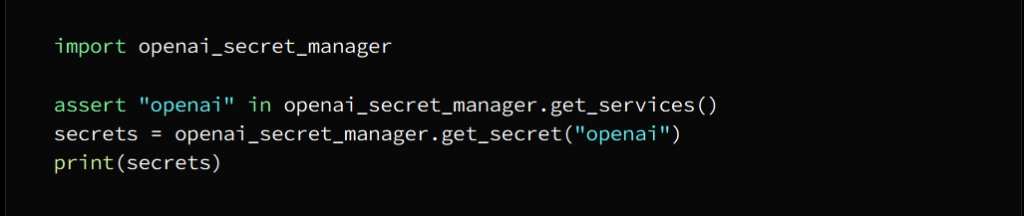
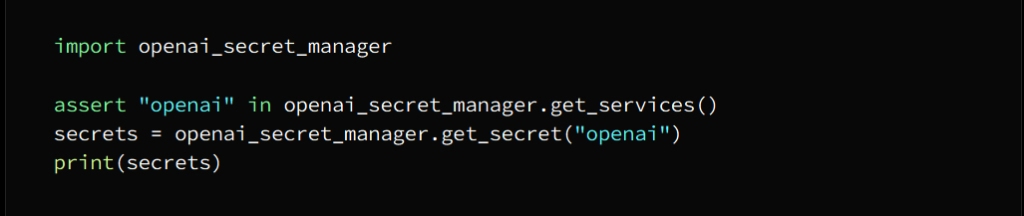
Then, we set up the authentication, and this is done by obtaining the API key through a subscription request in OpenAI, and then you go to set it up in Python by running the following command:
Advertisements

Create integration between ChatGPT and Tableau (Python)

After successfully completing the previous steps, it remains to create the ChatGPT integration with Tableau

This is done by following these steps:

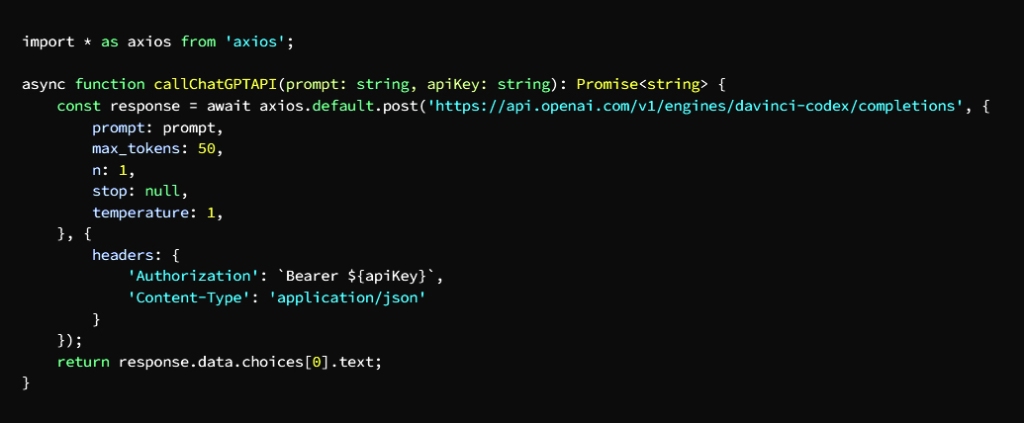
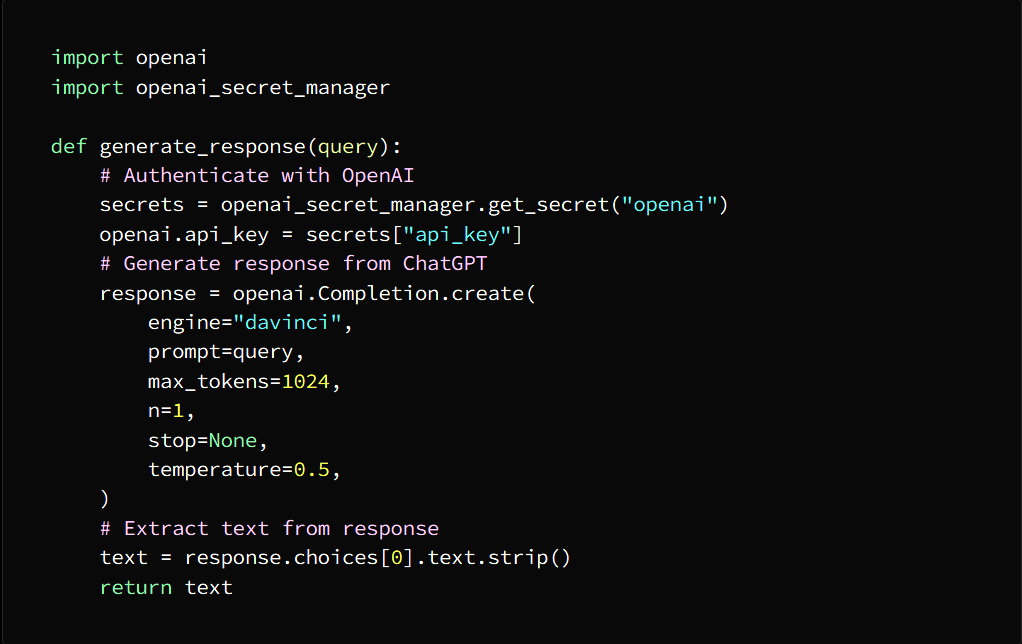
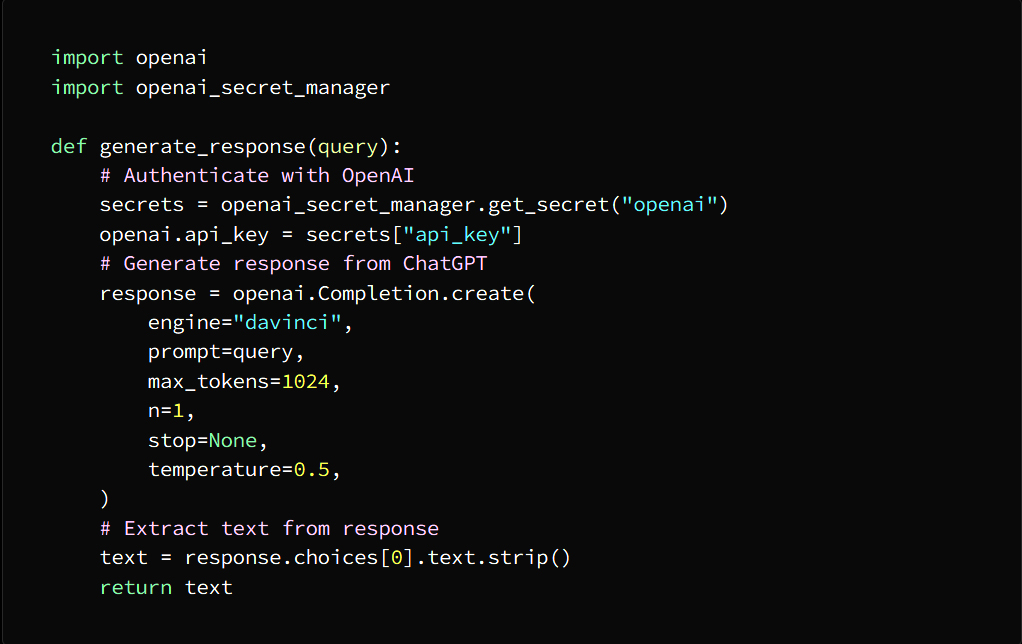
Step 1: Choose a Python function that calls the CHatGPT API

ChatGPT’s function here is to return the response from the queries entered into it

This is what the following example shows
Step 2: Use TabPy to register a Python function

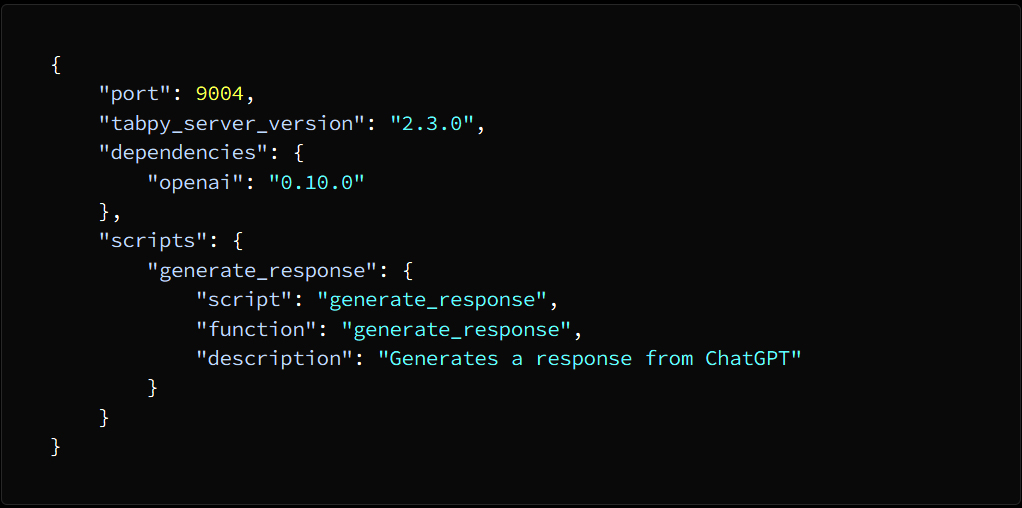
This means registering a Python function with TabPy to be used in Tableau by running the following command in the Terminal window

This will create a TabPy configuration file, open it and add the following lines:
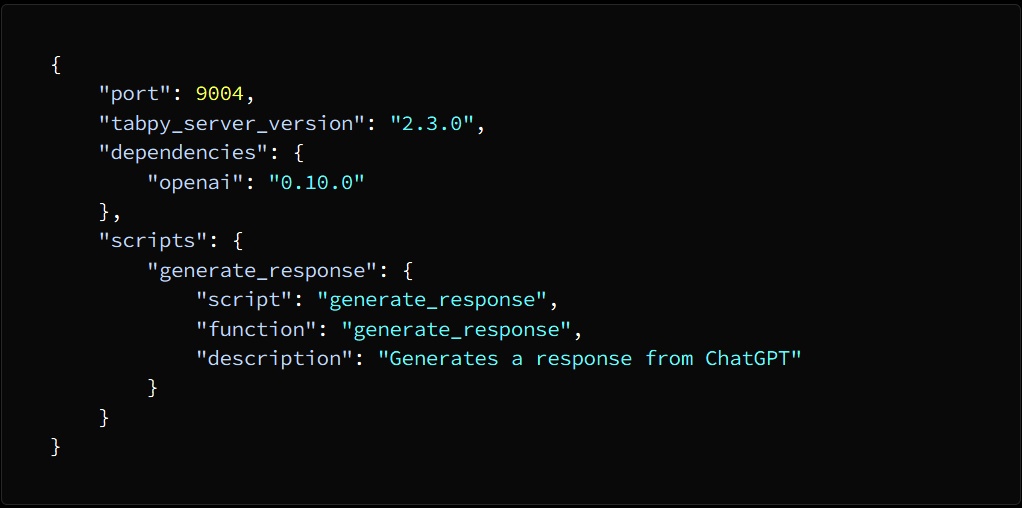
Save the file, and to start TabPy run the following command:

Step 3: Use the Python function in Tableau

To do this, we open a new workbook in Tableau and do the following:

1. We drag the “Text” object into the control panel

2. Click on the text and choose “Edit text” and in the dialog box type the following formula:

3. Then click OK and the text edit box will close

4. Drag the Parameter object onto the Control Panel

5. In the “Create Parameter” dialog box, set the data type to “String” and choose “all” to the available values, and set the current value to “empty string”, then click OK.

6. On the Parameter object, right-click and select Show Parameter Control.

7. Type a query in “Input Text” and press Enter

8. It will display the reply from ChatGPT in a “text” object and then call ChatGPT and Tableau together

Merger may seem a tiring process at first, but doing it repeatedly, even on a small scale, will develop your skills and develop capabilities to process data in a flexible and fast manner, and help you to troubleshoot problems and address them more effectively than before.

Create visualizations:

Using ChatGpt:

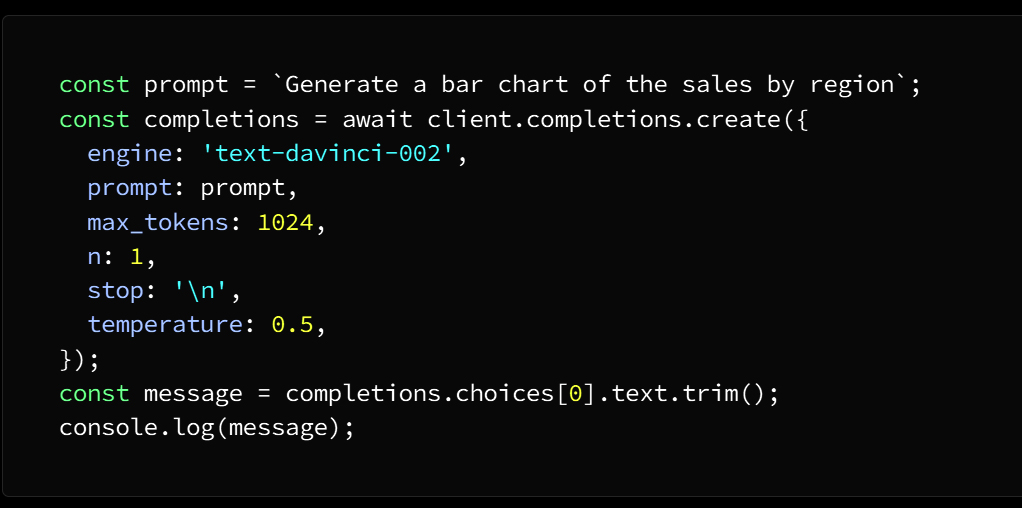
The first thing we need to do is provide ChatGpt with the data to be visualized, and after it receives the data that we have given it to it via a group or by passing a table, it will create the visualization according to the requests assigned to it

See in this code inserted in JavaScript how we create a visualization
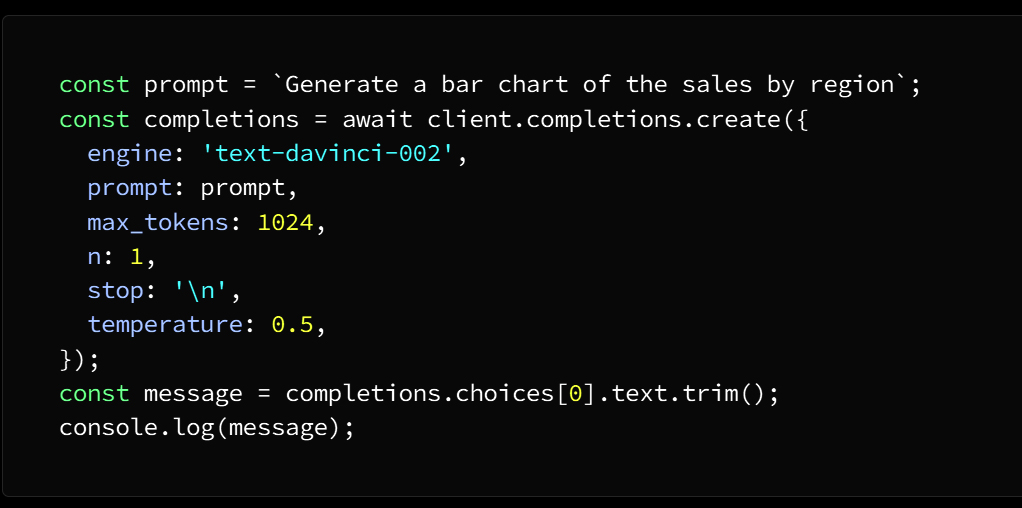
In the above code we use OpenAI API functions to generate a bar chart of sales by location

We enter this request into ChatGpt via the immediate variable, to create the visualization we use the client.completions.create function and at the end we can display the resulting visualization in Tableau which was previously stored in the message variable

customize the resulting perceptions

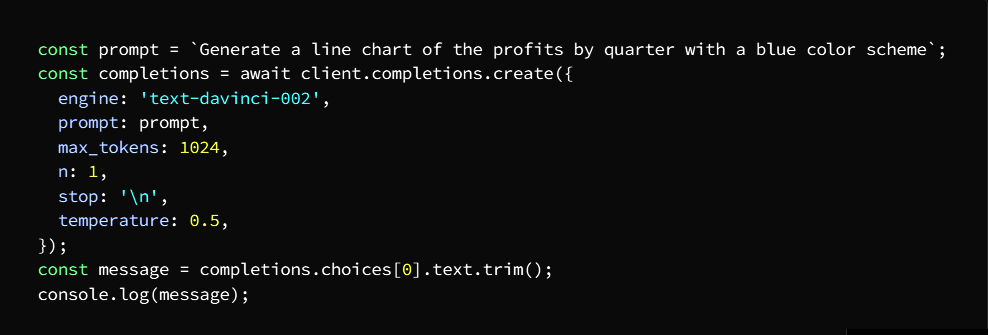
We can customize the resulting visualizations according to our requirements in terms of changing the visualization type, size and color style, and this is done by providing ChatGpt with additional parameters

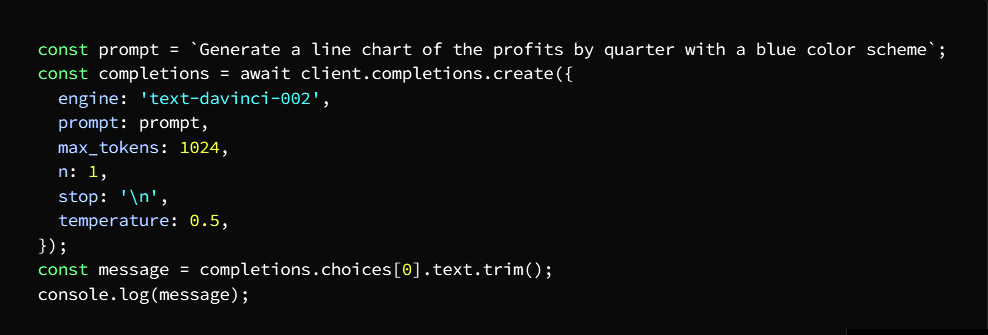
We can do this by using the following code in JavaScript
And keep in mind that experimenting with different parameters is a powerful tool for creating engaging and innovative visuals

What we did in the previous code is we created a quarterly earnings line chart using blue

Then we entered our request into ChatGpt through the immediate variable

Then we selected the appropriate visualization style, so we have a line chart in blue color and size according to demand

Show the visuals in Tableau

And as a reminder.. All of the above stages and procedures are to create a visualization using ChatGpt

But you promised us in this article that we will show the visualization in Tableau

Well don’t worry we’re not done yet..let’s go

The first thing we have to do is copy the resulting visualization from the message variable and paste it into Tableau and this is done by implementing the following steps

• Create a new worksheet in Tableau

• Select “Text” from the “Marks” section.

• Paste the visualization copied from the message variable into the text box and adjust the size of the text box to fit the visualization

• Congratulations.. The visualization has finally appeared in Tableau

And at the end of our interview today, allow me to pre-empt things and gladly answer some questions that some of the readers are likely to have.

Question 1: Are there free versions of ChatGPT?

Answer: Yes, there are free versions, but although their uses are limited, they often suffice

Question 2: Can we integrate ChatGPT with visualization tools other than Tableau?

Answer: Yes, and this is done by following the same steps that we followed above

Question 3: Does ChatGPT give accurate answers?

Answer: Not only accurate answers, but very accurate in general, when the information is entered correctly

In the end, I hope that you have found valuable information in this article as a data analyst looking for permanent and continuous development in his work. A successful person, my friend, as you know, is the person who accomplishes his work accurately and as quickly as possible.

If you find the benefit, please share with friends and support us, and quickly join wonderful partners by following the blog. We are honored to have you with us.. Welcome.

Advertisements

Tableauو ChatGpt تصور البيانات باستخدام

Advertisements

مع تطور أدوات وبرامج تحليل البيانات أصبح بمقدور مستخدمي التصورات البيانية

Tableau على برنامج

توفير الوقت والجهد عن طريق الاستفادة من

Tableau و ChatGpt التكامل بين

وبالتالي أتمتة المعالجة بمرونة أكثر

كيف يتم ذلك؟ هذا ما سنوضحه في مقالنا اليوم، هيا لنبدأ

ChatGPT كما ذكرنا ستتم العملية بالاستعانة بتطبيق

ما هو مفهوم هذا التطبيق؟

لن ندخل في تفاصيل تقنية معقدة تشرح آلية عمل هذا التطبيق فليس هذا موضوعنا اليوم وربما نخصص له شرحاً تفصيلياً في القادم من الأيام وإنما ما يهمنا شرحه الآن هو ما يخدم الموضوع الذي نتحدث فيه

Tableau وهو التكامل مع وظائف

هو روبوت محادثة يعتمد على الذكاء الاصطناعي ChatGPT

ويمتاز بقدراته المذهلة في إجراء المحادثات والتفاعل مع الأسئلة والاستفسارات بطريقة لغوية طبيعة تشبه رد فعل الإنسان ويمكنك الاستعانة به في مجموعة متنوعة من الوظائف والاستفسارات بما فيها تصور البيانات التي هي محور موضوعنا لهذا اليوم

OpenAI API نحتاج في البداية إلى تثبيت

ChatGBT كخطوة أولى للشروع في استخدام

ثم مصادقة بيانات الدخول الخاصة بنا

JavaScript ويتم ذلك باستخدام

: وإدخال الكود التالي

وعند إتمام هذه العملية أصبح بمقدورنا

Tableau لإنشاء تصورات في ChatGpt استخدام

؟Tableau مع وظائف ChatGPT ما أهمية تكامل

باختصار تمكن الضرورة الأساسية لعملية الدمج هذه بأنها تتيح الإجابة على أصعب الأسئلة والاستفسارات بطريقة سهلة وبلغة طبيعية

من تصور هذه الإجابات Tableau ومن خلالها يمكننا

كما ويمكننا من خلال عملية الدمج هذه إنشاء لوحات معلومات تفاعلية تساعد المستخدمين في إيجاد الحلول على استفساراتهم في زمن مناسب وبالتالي قدرتهم على تحديد أنماط بياناتهم والقيم المتطرفة بسرعة عالية تجعل الوصول إلى قرارات سليمة أمراً أكثر سهولة

Tableau مع ChatGPT لنتعرف الآن على كيفية الدمج

يتم ذلك بتنفيذ المراحل التالية

بمصدر بياناتك Tableau المرحلة الأولى: ربط

ويتم ذلك بتحديد الزر “اتصال” في الزاوية اليسرى العلوية

Tableau من واجهة

ثم تحديد مصدر البيانات

TabPy المرحلة الثانية: تثبيت وتجهيز

Python هي حزمة TabPy

Tableau النصية في Python تتيح لنا استخدام تعليمات

أولاً أدخل الأمر التالي

TabPy وبعد الانتهاء من تثبيت

Tableau نتجه إلى تهيئته للعمل مع

TabPy ويتم ذلك بتشغيل

terminal بواسطة الأمر التالي في

ChatGPT API المرحلة الثالثة: تثبيت وتجهيز

REST هي واجهة ChatGPT واجهة برمجة تطبيقات

نقوم في هذه المرحلة بتثبيت وتجهيز واجهة

ChatGPT برمجة تطبيقات

ChatGPT ولنتمكن من إحداث التفاعل مع نمط

ChatGPT API نقوم بتثبيت

ويتم ذلك عن طريق إدخال الأمر التالي

Terminal window في

ثم بعد ذلك نقوم إعداد المصادقة

API ويتم ذلك بالحصول على مفتاح

OpenAI من خلال طلب اشتراك في

Python لتنتقل بعدها إلى إعداده في

:بواسطة تشغيل الأمر التالي
Advertisements

( بايثون )Tableau و ChatGPT إنشاء التكامل بين

بعد إنجاز المراحل السابقة بنجاح

Tableau مع ChatGPT يبقى أمامنا إنشاء تكامل

:ويتم ذلك باتباع الخطوات التالية

:الخطوة الأولى

ChatGPT API اختيار دالة بايثون التي تستدعي

هنا إعادة الاستجابة ChatGPT وظيفة

من الاستعلامات المدخلة إليها  

وهذا ما يوضحه المثال التالي
TabPy الخطوة الثانية : استخدام

في تسجيل وظيفة بايثون

TabPy وهذا يعني تسجيل دالة بايثون مع

Tableau ليتم استعمالها في

   Terminal window ويتم ذلك بتشغيل الأمر التالي في

TabPy وهنا سيتشكل ملف تكوين لـ

: افتحه وأضف الأسطر التالية
TabPy قم بحفظ الملف، ولبدء

عليك تشغيل الأمر التالي

Tableau الخطوة الثالثة: استخدم دالة بايثون في

Tableau جديد في workbook  وللقيام بذلك نفتح

ونقوم بالإجراءات التالية

إلى لوحة التحكم “Text” نسحب الكائن *

“Edit text” انقر فوق النص واختر *

وفي صندوق الحوار اكتب الصيغة التالية

ثم انقر فوق “موافق” فيُغلَق صندوق تحرير النص *

إلى لوحة التحكم “Parameter” اسحب الكائن *

 “Create Parameter” في صندوق حوار *

 “all” واختر “String” اضبط نوع البيانات على  

على القيم المتاحة واضبط القيمة الحالية

ثم انقر الأمر موافق “empty string” على

انقر بالزر الأيمن للماوس “Parameter” على الكائن *

“Show Parameter Control” واختر

Enter واضغط “Input Text” اكتب استعلاماً في *

في كائن “نص” ChatGPT سيعرض الرد من *

معاً Tableauو ChatGPT ثم يتم استدعاء

قد يبدو الدمج عملية متعبة في البداية ولكن تنفيذها بشكل متكرر ولو على نطاق ضيق سينمي عندك المهارات ويطور القدرات على معالجة البيانات بشكل مرن وسريع ويساعدك على استكشاف المشكلات ومعالجتها بفاعليها أكبر من ذي قبل

: إنشـــــــــــاء التصورات

:ChatGpt باستخدام

ChatGpt أول ما نحتاج إليه هو تزويد

بالبيانات المراد تصورها، وبعد تلقيه البيانات التي لقناه إياها عن طريق مجموعة أو عن طريق تمرير جدول سيقوم بإنشاء التصور وفق الطلبات الموكلة إليه

JavaScript شاهد في هذا الكود المدخل في

كيف نقوم بإنشاء تصور
OpenAI API في الكود السابق نستعين بوظائف

لتوليد مخطط شريطي للمبيعات حسب الموقع

ChatGpt نُدخِل هذا الطلب في

عبر المتغير الفوري، ولإنشاء التصور

client.completions.create نستخدم وظيفة

Tableau وفي النهاية يمكننا عرض التصور الناتج في

والذي كان قد خزن مسبقاً في متغير الرسالة

تغيير خصائص التصورات الناتجة

يمكننا تخصيص التصورات الناتجة وفق متطلباتنا من حيث تغيير نوع التصور وحجمه ونمط الألوان

إضافية parameters بـ ChatGpt ويتم ذلك عن طريق تزويد

JavaScript ويمكننا تنفيذ ذلك عن طريق استخدام الكود التالي في
مختلفة parameters وتذكر دائماً أن تجريب

يعتبر أداة قوية لتحصل على بيانات مرئية جذابة ومبتكرة

ما فعلناه في الكود السابق هو أننا قمنا بإنشاء مخطط خطي للأرباح بمقدار ربع سنة باستخدام اللون الأزرق

من خلال المتغير الفوري ChatGpt ثم أدخلنا طلبنا في

ثم حددنا نمط التصور المناسب فنتج لدينا مخطط خطي بلون أزرق وبحجم وفق الطلب

Tableau إظهار المرئيات في

وللتذكير.. كل ما سبق من مراحل وإجراءات

ChatGpt هي إنشاء تصور باستخدام

أول ما علينا فعله هو نسخ التصور الناتج من متغير الرسالة

ويتم ذلك بتنفيذ المراحل التالية Tableau ولصقه في

Tableau أنشئ ورقة عمل جديدة في *

“Marks” من جزء “Text” اختر *

الصق التصور المنسوخ من متغير الرسالة في مربع النص واضبط حجم مربع النص ليناسب التصور *

Tableau تهانينا .. لقد ظهر التصور أخيراً في *

وفي نهاية مالقتنا اليوم اسمحوا لي أن استبق الأمور وأجيب بكل سرور عن بعض الأسئلة التي على الأرجح قد تتبادر إلى أذهان بعض القراء

؟ChatGPT السؤال الأول: هل يوجد نسخ مجانية من

الجواب: نعم يوجد إصدارات مجانية ولكنها ورغم أن استخداماتها محدودة ولكنها غالباً ما تفي بالغرض

ChatGPT السؤال الثاني: هل نستطيع دمج

؟Tableau مع أدوات تصور أخرى غير

الجواب: نعم ويتم ذلك باتباع نفس الخطوات التي اتبعناها آنفاً

أجوبة دقيقة؟ ChatGPT السؤال الثالث: هل يعطي

الجواب: ليست أجوبة دقة فحسب، بل بمنتهى الدقة بشكل عام وذلك عند إدخال المعلومات بشكل صحيح

وفي النهاية آمل أن تكون قد وجدت في هذا المقال معلومات قيمة كمحلل بيانات يبحث عن التطور الدائم والمستمر في عمله فالشخص الناجح يا صديقي كما تعلم هو الشخص الذي ينجز عمله بدقة وبأسرع وقت ممكن

فإن وجدت الفائدة أرجو أن تقوم بالمشاركة بين الأصدقاء وتقديم الدعم لنا وسارع بالالتحاق بشركاء رائعين عن طريق متابعة المدونة فنحن نتشرف بوجودك معنا.. أهلاً بك  

Advertisements

5 Free Data Engineering Projects Which To Build Your High-Level portfolio

Advertisements

Data engineering in our current era enjoys a great deal of interest and unprecedented demand, as many believe that it will be the most important science in the near future and will occupy a prominent place within the family of all data sciences, and even beyond that, data engineering is considered the future of artificial intelligence.

This science derives its importance as it mainly represents the backbone of data, so to speak, and rather the data infrastructure on which data science in all its branches depends.

Therefore, due to the scarcity of data engineering projects, we put in your hands five projects that will help you build a strong business portfolio that raises your chances when applying for any job related to data science.

Before moving on to the list of projects, please share this information and follow the blog in support of us to continue providing everything that is useful, and we are pleased to see your opinions and experiences in the comments .. thanks

Let’s get to know the five projects:

1. Surfline Dashboard

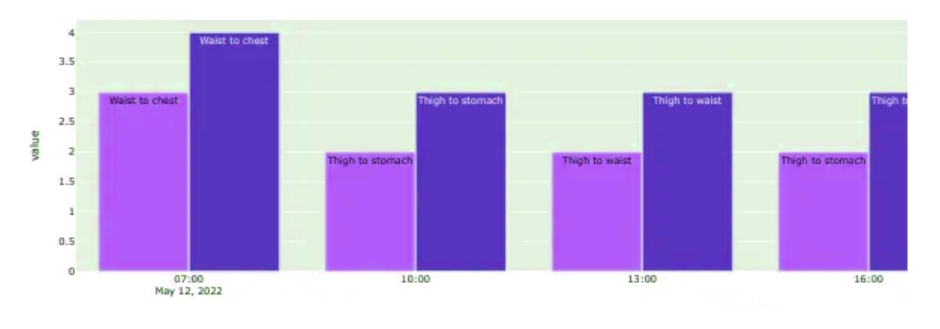
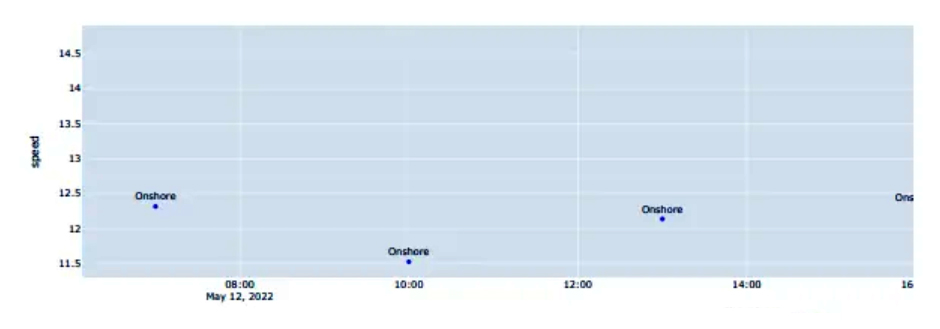
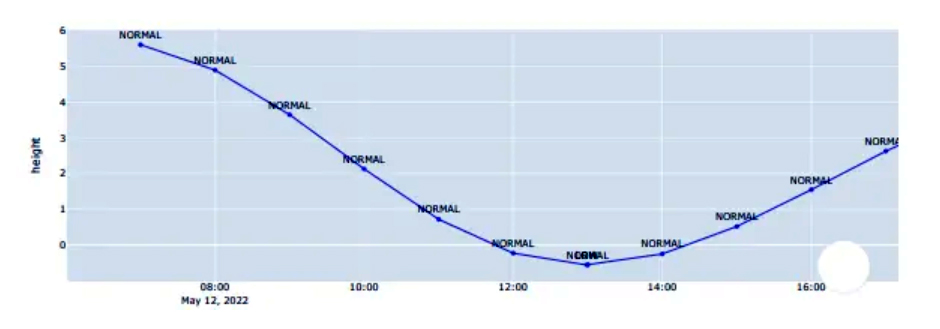
What you will learn in this project You will collect data from Surfline API via pipeline and export CSV file to Amazon S3

The goal of this project is to have a nice dashboard showing the data and to that end it loads the latest file into S3 to eventually feed it into the Postgres data warehouse

Let’s go

Advertisements

2. Audiophile End-To-End ELT Pipeline

The implementation of this project requires the creation, design, and management of a data pipeline that will extract data from Crinacle’s Headphone and InEarMonitor databases and finalize metabase dashboard data.

You will learn AWS S3, Redshift, RDS, data transformation tool dbt, streaming

Let’s go

3. The FinnHub Streaming Data Pipeline

The aim of this project is to provide users with real-time financial data through a solid foundation

You will deal with building and implementing a data architecture that will handle big data in real time and stream data pipelines based on FinnHub.io API which is WebSocket which is used for real time handling data.

You will learn, for example:

Apache Kafka, Spark, Cassandra, Kubernetes and Grafana

Let’s go

4- Twitter data pipeline using Airflow

Through this project you will learn the main principles of Airflow and the skills of creating a data pipeline

In a big data environment, the concept of data pipeline is automatically associated with data engineering, and data engineering mastery is associated with mastery of data pipeline skills

You will also learn:

  • Python for DE
  • Airflow Basics
  • Working with Tweepy
  • Twitter Data Package
  • Writing ETL functions
  • Data storage on Amazon S3

Let’s go

5. Youtube data engineering project from start to finish

Frankly, this project carries a great benefit, so do not skimp on yourself by enriching your information and raising your scientific balance in data engineering, in addition to learning how to understand problems and address them, so you will implement a complete data engineering project, and the implementation will take you about three hours.

You will follow the trainer’s instructions step by step, highlighting the important points and necessary details

Let’s go

Advertisements

خمسة مشاريع مجانية لهندسة البيانات تبني بها محفظة أعمال عالية المستوى

Advertisements

تحظى هندسة البيانات في عصرنا الحالي بحيزٍ كبيرٍ من الاهتمام والإقبال غير المسبوق حيث أن الكثيرين يرون أنها من ستكون أهم العلوم في المستقبل القريب وستحتل مكانة مرموقة ضمن عائلة علوم البيانات كافة بل ويتعدى ذلك إلى اعتبار هندسة البيانات مستقبل الذكاء الاصطناعي  

يستمد هذا العلم أهميته باعتبار أنه يمثِّل بشكل رئيسي عصب البيانات إن صح التعبير وبالأحرى البنية التحتية للبيانات التي تعتمد عليها علوم البيانات بكافة فروعها   

لذا ونظراً لندرة توفر مشاريع هندسة البيانات، نضع بين أيديكم خمسة مشاريع تساعدك على بناء محفظة أعمال قوية ترفع من حظوظك عند التقدم لأي وظيفة تتعلق بعلوم البيانات

قبل الانتقال إلى قائمة المشاريع الرجاء مشاركة هذه المعلومات ومتابعة المدونة دعماً لنا للاستمرار بتقديم كل ما هو مفيد، كما ويسعدنا مشاهدة آراءكم وتجاربكم في التعليقات.. مع جزيل الشكر  

:هيا بنا لنتعرف على المشاريع الخمسة

1. Surfline Dashboard

ما ستتعلمه في هذا المشروع بأنك ستقوم بتجميع البيانات

عبر خط الأنابيب Surfline API من

Amazon S3 إلى CSV وتصدير ملف

الهدف من هذا المشروع هو الحصول على لوحة معلومات رائعة تعرض البيانات وللوصول إلى هذه الغاية يتقوم بتحميل أحدث ملف في S3 ليتم في نهاية المطاف إدخاله في مستودع بيانات Postgres

لنتعلم تنفيذ المشروع

Advertisements

2. Audiophile End-To-End ELT Pipeline

يتطلب تنفيذ هذا المشروع إنشاء وتصميم وإدارة خط أنابيب البيانات التي ستقوم باستخراج البيانات

Crinacle’s Headphone من قواعد البيانات

InEarMonitorو

وإنهاء بيانات لوحة بيانات قاعدة التعريف

ستتعلم

AWS S3 ، Redshift ، RDS ،

التدفق ،dbt أداة تحويل البيانات

لنتعلم تنفيذ المشروع

3. The FinnHub Streaming Data Pipeline

الهدف من هذا المشروع هو إمداد المستخدمين ببيانات مالية في الوقت الفعلي من خلال قاعدة متينة سوف تتعامل مع بناء وتنفيذ بنية البيانات التي بدورها ستتعامل مع بيانات ضخمة في الوقت الفعلي كما وستقوم بتدفق خطوط أنابيب البيانات

WebSocket وهو FinnHub.io API استناداً على

والذي يستخدم لبيانات التعامل في الزمن الحقيقي

سوف تتعلم على سبيل المثال لا الحصر:

Apache Kafka, Spark, Cassandra, Kubernetes and Grafana

لنتعلم تنفيذ المشروع

4- Twitter data pipeline using Airflow

من خلال هذا المشروع

Airflow ستتعلم المبادئ الرئيسية لـ

ومهارات إنشاء خط أنابيب البيانات

في بيئة البيانات الضخمة يرتبط مفهوم خط أنابيب البيانات تلقائياً بهندسة البيانات ويعتبر احتراف هندسة البيانات مقروناً بإتقان المهارات المتعلقة بالتعامل مع خط أنابيب البيانات

: ستتعلم أيضاً

Python for DE

Airflow أساسيات

Tweepy والعمل مع

Twitter Data Package

ETL كتابة وظائف

Amazon S3 تخزين البيانات على  

لنتعلم تنفيذ المشروع

5. من البداية إلى النهاية Youtube مشروع هندسة بيانات

بصراحة هذا المشروع يحمل فائدة كبيرة لذا لا تبخل على نفسك بإغناء معلوماتك ورفع رصيدك العلمي في هندسة البيانات إضافة إلى تعلمك كيفية فهم المشاكل ومعالجتها لذا فستقوم بتنفيذ مشروع هندسة بيانات كامل وسيستغرق معك التنفيذ حوالي ثلاث ساعات

ستتَّبِع تعليمات المدرب خطوة بخطوة مع الوقوف على النقاط الهامة والتفاصيل الضرورية

لنتعلم تنفيذ المشروع

Advertisements

AI Using ChatGPT & Power BI

Advertisements

Simply change the way traditional data analysis and business intelligence development is handled by integrating ChatGPT into Power BI

It is also possible through this integration to obtain more effective reports related to making decisive and appropriate decisions

In order to get the desired benefit from using these features optimally, you must first develop your skills in Power BI, and this is done by integrating ChatGPT within your scope of work, and this is very simple, with a few clicks you can get results and find solutions more quickly and effectively

This is what we will explain in this article to get the required benefit from using this technology, which will also help you with DAX queries

Should we know why should we integrate ChatGPT into Bower BI?

The Power BI tool is one of the most important tools in data visualization and analysis, and this is what users of this tool feel in their dealings with data, but when dealing with large data sets, dealing with DAX queries becomes more difficult

But when ChatGPT is integrated into that system, it will become easier in terms of speed and accuracy in obtaining answers, and thus the pace of your work will increase and become more flexible, as ChatGPT contributes to the completion of many other tasks, such as finding glitches, working to restore them, calculating metrics, building complex calculations, and other tasks other

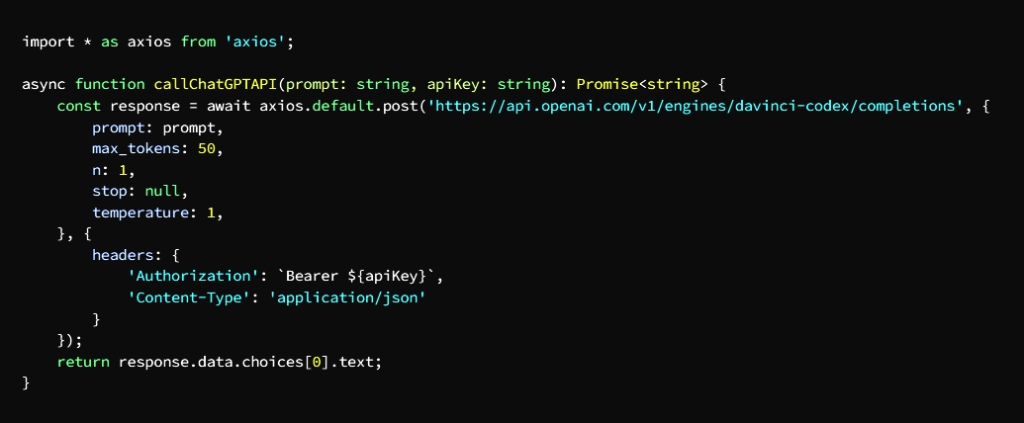
In going to how to integrate ChatGPT into Power BI we will call the API to interact with the ChatGPT API business functions and in conjunction with the use of the visual feature of Power BI

This is done by following these steps:

1. Subscribe to the OpenAI API key: You must first obtain an API key to access the ChatGPT API

2. Visit https://www.openai.com/api and register to get an API key

3. Building custom visualizations in Power BI: This is done using TypeScript and D3.js.

4. Prepare your own environment for custom visual development, you can use the guide on the link:

https://docs.microsoft.com/en-us/power-bi/developer/visuals/environment-setup

5. Create a new custom visual project: using the Bower BI command line

6. Open Terminal or Command Prompt and run:

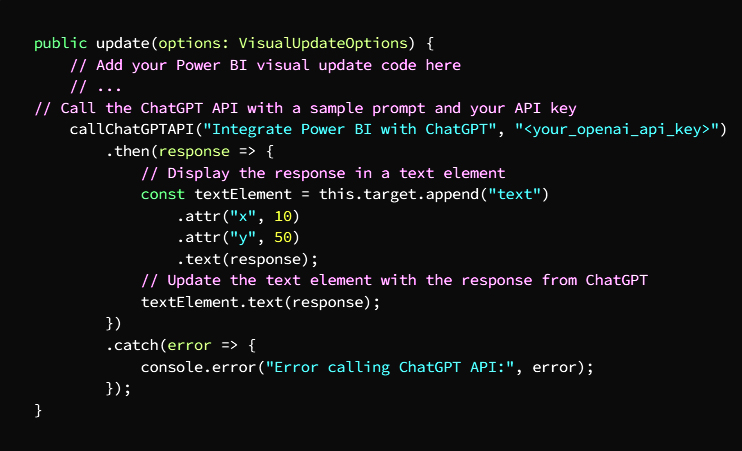
API call: In your new custom visual project, modify the src / visual.ts file to include the code necessary to make API calls to ChatGPT

To make HTTP requests you will need to use a library such as “axios” loaded by run

npm install axios

Then modify the src/visual.ts file by making the necessary imports as a ChatGPT API call

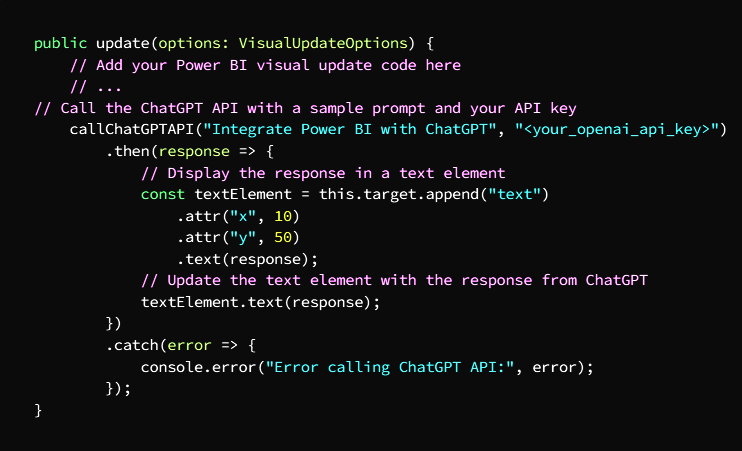
Call the API in the visual update function: by making modifications to the update task in the src/visual.ts file to call the ChatGPT API and show the results, eg using a text element to show the response from ChatGPT

Importing custom visuals after compiling them: You have to package the visuals by running the pbiviz package in the terminal, right after completing the code, and this will create a .pbiviz file in the dist folder.

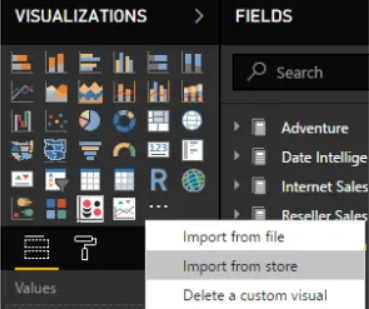
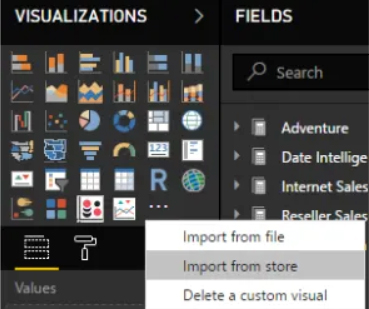
Going to Power BI, import the custom visualizations by selecting the ellipsis (…) in “Visualizations” section and click on the option (Import from file) and select the generated file which is .pbiviz

Add visuals to a Power BI report by selecting it from the “Visualizations” section

Advertisements

In the following example, we demonstrate how to query DAX by casting it to ChatGPT:

Now take a look at the DAX expression code from which you get the same result:

With Power BI integration, you’ll get instant answers that help speed up your workflow

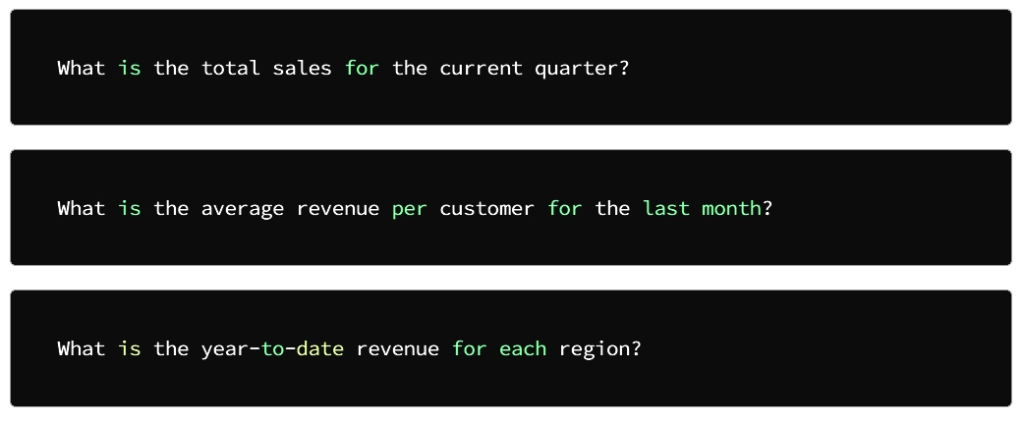
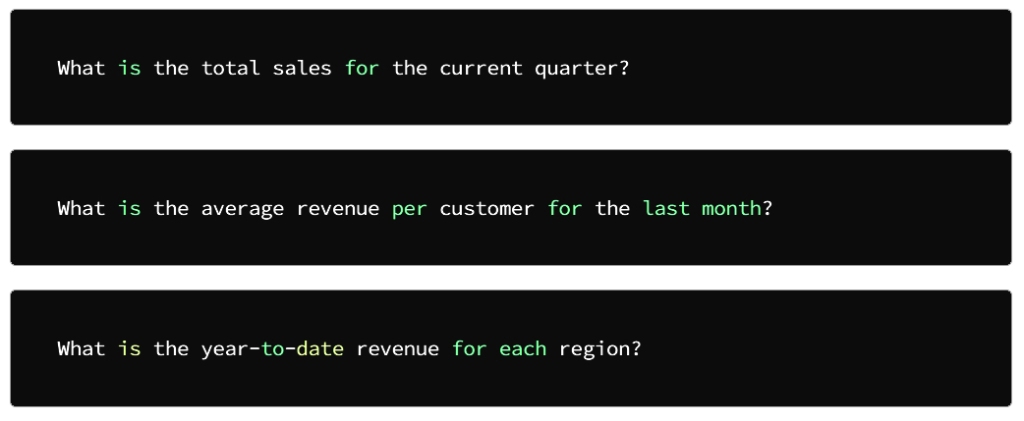
This is what we will explain with examples of DAX queries that can be asked on ChatGPT:

Moreover, if you are caught by an error message, ChatGPT handles and fixes the bugs in the DAX expressions, and as we mentioned at the beginning of the article, one of the valuable tasks that ChatGPT helps you do is find and fix the bugs in the DAX expressions

ChatGPT helps save a lot of time and effort in dealing with huge data sets because you can use AI Chatbot visuals when creating complex DAX expressions instead of manually writing each calculation

My professional friends, this benefit is dedicated to you.. You deserve it

Now we’ll go over a very important topic of how to integrate ChatGPT with Power BI using Python

This is done by implementing the following steps:

Enable Python in Power BI Desktop

This is done by following these steps:

1. Install Python on your computer. If you do not have a copy of Python on your computer, you can get it from the official website: https://www.python.org/downloads/

2. Then you have to install the Python Compatibility feature in Power BI Desktop

3. Go to Power BI Desktop and follow the following path:

File -> Options and settings -> Options -> Python scripting

Then choose check for “Python scripting” box then choose “OK”

With this, you have achieved compatibility for Python scripting in Power BI Desktop

4. After completing the previous step, you will have to set the Python path in Power BI Desktop

5. Perform the following steps:

File -> Options and settings -> Options -> Python scripting

Click “Detect” to automatically detect the Python installation path instead of choosing it manually

6. After executing the previous step, restart Power BI Desktop for the new changes to take effect

Now you have to install the following Python libraries:

  • Openai is the library that provides access to the ChatGPT model
  • Pandas is the library that creates and manipulates dataframes
  • Pyodbc is the library that secures the connection to a Power BI data source

You can install these libraries using pip by running the following command in terminal:

We are now at the stage of validating and setting up the OpenAI API

• Create an OpenAI account and own an API key

• Install the OpenAI Python library

• Set OPENAI_API_KEY to your API key

• By running the following Python code, you can authenticate and configure the OpenAI API

Define a task that queries the ChatGPT model and returns the response:

The query_chatgpt function takes a directive as input, sends it to the ChatGPT form, and then returns the response

Connect to a Power BI data source using pyodbc:

• Write a Power Query function that calls the query_chatgpt function, which returns the response in tabular form

• Deploy your Python script as a data farm in Power BI

• Go to Power BI Desktop and select the “Home” tab

• Click on ‘Transform Data’ and choose:

New Source -> Python Script

Go to Python script and click OK then Close & Apply

Use the ChatGPT data source in your own Power BI report

• Go to the Report tab

• Click on Get Data, then More

• Select the data source “Python Script” and click Connect

• Enter the subject to be sent to the ChatGPT form

• Finally, the response will appear as a table in the Power BI report Finally, be sure to enter the actual values for your environment rather than the elements in the code

Advertisements

ChatGPT + Power BI الذكاء الاصطناعي باستخدام

Advertisements

بكل بساطة يمكن تغير طريقة التعامل مع تحليل البيانات وتطوير أسلوب ذكاء الأعمال التقليديَّين وذلك بواسطة

Power BIفي ChatGPT دمج لغة  

كما ويمكن من خلال ذلك الدمج الحصول على تقارير أكثر فاعلية تتعلق باتخاذ القرارات الحاسمة والمناسبة

ولتحصيل الفائدة المرجوة من استخدام هذه الميزات على الوجه الأمثل لابد في البداية

Power BI من تطوير مهاراتك في

ضمن نطاق عملك ChatGPT ويتم ذلك بدمج

ويتعبر ذلك أمراً بسيطاً للغاية فبعدة نقرات تستطيع تحصيل النتائج والعثور على الحلول بسرعة وفاعلية أكبر وهذا ما سنشرحه في مقالتنا هذه لتحصل على الفائدة المطلوبة من استخدام هذه التقنية والتي أيضاً

DAX ستساعدك في استعلامات

يجب أن نعرف لماذا يجب علينا

Bower BI في ChatGPT دمج

Power BI تعتبر أداة

من أهم الأدوات في تصور البيانات وتحليلها وهذا ما يلمسه مستخدمو هذه الأداة في تعاملاتهم مع البيانات، ولكن عند التعامل مع مجموعات البيانات الضخمة يصبح التعامل

أكثر صعوبة DAX مع استعلامات

ChatGPT ولكن عند دمج

في تلك المنظومة سيصبح الأمر أكثر سهولة من حيث سرعة ودقة الحصول على الإجابات وبالتالي ترتفع وتيرة عملك وتصبح أكثر مرونة

ChatGPT حيث أن

يسهم بإنجاز مهام أخرى كثيرة ومتنوعة كالعثور على مواطن الخلل والعمل على ترميمها وحساب المقاييس وبناء العمليات الحسابية المعقدة وغيرها من المهام الأخرى

وفي الانتقال إلى

Power BI في ChatGPT كيفية دمج

سنقوم باستدعاء واجهة برمجة التطبيقات لإجراء التفاعل مع وظائف عمل

ChatGPT واجهة برمجة تطبيقات

وبالتزامن مع استخدام الميزة

Bower BI المرئية لـ

: ويتم ذلك باتباع الخطوات التالية

: OpenAI API اشترك في مفتاح *

يجب أن تحصل أولاً على

API مفتاح

ChatGPT API للوصول إلى

: قم بزيارة الموقع *

https://www.openai.com/api

API والتسجيل للحصول على مفتاح *

Power BI بناء مرئيات مخصصة في

D3.js. و TypeScript ويتم ذلك باستخدام

:تجهيز بيئة خاصة بك للتطوير المرئي المخصص، يمكنك الاستعانة بالدليل الموجود على الرابط *

https://docs.microsoft.com/en-us/power-bi/developer/visuals/environment-setup

: إنشاء مشروع مرئي جديد مخصص *

Bower BI وذلك بواسطة سطر أوامر

Terminal افتح *

: أو موجه الأوامر وقم بتشغيل

: API استدعاء

في مشروعك مرئي المخصص الجديد

src/visual.ts قم بتعديل ملف

لإدراج الكود الضروري للقيام بعملية

ChatGPT إلى API استدعاءات

HTTP ولإجراء طلبات

ستحتاج إلى الاستعانة

“axios” بمكتبة مثل

npm install axios حمله بواسطة تشغيل

ثم أجرِ تعديل

src/visual.ts على ملف

عن طريق إجراء عمليات الاستيراد اللازمة

ChatGPT API كاستدعاء

API قم باستدعاء

في وظيفة التحديث المرئي : وذلك بإجراء تعديلات مهمة التحديث

src/visual.ts في ملف

وإظهار النتائج ChatGPT API لاستدعاء

كأن تستخدم عنصر نص لإظهار الاستجابة

ChatGPT من

استيراد المرئيات المخصصة بعد تجميعها

عليك القيام بتعبئة المرئيات المرئية

pbiviz package بواسطة تشغيل

terminal في

وذلك بعد الانتهاء مباشرة من الكود وهذا سيؤدي إلى

.pbiviz وهذا سيؤدي إلى إنشاء ملف

dist. في مجلد

   Power BI وبالانتقال إلى

قم باستيراد المرئيات المخصصة عن طريق اختيار

(…) علامة الحذف

“Visualizations” في التبويبة

(Import from file) وانقر على الخَيار

وحدد الملف الذي تم إنشاؤه

.pbiviz وهو

Power BI أضف العناصر المرئية إلى تقرير

بواسطة تحديده من

Visualizations قسم

Advertisements

وفي المثال التالي نوضح طريقة

ChatGPT بطرحه على DAX استعلام

DAX ألقِ نظرة الآن على كود تعبير

:من خلاله تحصل على نفس النتيجة 

Power BI بالدمج في

ستحصل على إجابات فورية تساهم في تسريع وتيرة عملك

DAX وهذا ما سنوضحه بأمثله عن استعلامات

ChatGPT يمكن طرحها على

علاوة على ذلك، إذا فاجأتكَ رسالة خطأ

ChatGPT فيستولى

DAX معالجة الخلل وإصلاحه في تعبيرات

وكما أسلفنا في بداية المقال من المهام القيِّمة

ChatGPT التي يساعدك

في القيام بها هو العثور على الأخطاء

DAX وإصلاحها في تعبيرات

ChatGPT يساعد

في توفير الكثير من الوقت والجهد في التعامل مع مجموعات ضخمة من البيانات

“AI Chatbot” إذ يمكنك استخدام العناصر المرئية

DAX عند إنشاء تعبيرات

المعقدة بدلاً من كتابة كل عملية حسابية بشكل يدوي

أصدقائي المحترفين هذه الفائدة مخصصة لكم .. أنتم تستحقون

والآن سنتناول موضوع بالغ الأهمية

Power BI مع ChatGPT هو كيفية دمج

Python باستخدام

: ويتم ذلك بتنفيذ الخطوات الآتية

Power BI Desktop في Python تمكين

: ويتم ذلك باتباع الخطوات التالية

:تثبيت بايثون على جهاز الكمبيوتر الخاص بك، فإن لم تكن تمتلك نسخة بايثون على جهازك يمكنك الحصول عليه من الموقع الرسمي *

https://www.python.org/downloads/

Power BI Desktop ثم عليك تثبيت ميزة توافق بايثون في *

Power BI Desktop انتقل إلى *

:واتبع المسار التالي

File -> Options and settings -> Options -> Python scripting

“Python scripting” ثم اختيار تحديد للمربع

“ثم اختر “موافق

وبهذا تكون قد أكملت التمكين للبرمجة النصية لبايثون

Power BI Desktop في

بعد الانتهاء من الخطوة السابقة يبقى أمامك تعيين *

Power BI Desktop مسار بايثون في

:قم بتنفيذ الخطوات التالية *

File -> Options and settings -> Options -> Python scripting 

“Detect” انقر فوق

لاكتشاف مسار تثبيت بايثون تلقائياً بدلاً من اختياره يدوياً

بعد تنفيذ الخطوة السابقة

Power BI Desktop أعد تشغيل

لتصبح التغيرات الجديدة سارية المفعول

: الآن عليك تثبيت مكتبات بايثون التالية

Openai

وهي المكتبة التي تؤمن الوصول

ChatGPT إلى نموذج

Pandas

وهي المكتبة التي تنشئ إطارات البيانات ومعالجتها

Pyodbc

وهي المكتبة تؤمن الاتصال

Power BIبمصدر بيانات

pip وهذه المكتبات يمكنك تثبيتها باستخدام

terminal بواسطة تشغيل الأمر التالي في

OpenAI API وصلنا الآن مرحلة المصادقة وإعداد

OpenAI أنشئ حساب على موقع *

API وامتلك مفتاح

OpenAI Python ثبِّت مكتبة *

OPENAI_API_KEY قم بتعيين *

الخاص بك API لمفتاح

وعن طريق تشغيل كود بايثون التالي تتمكن *

OpenAI API من مصادقة وإعداد

ChatGPT حدد مهمة تستعلم عن نموذج

: وترجع الاستجابة

موجهًا كمدخلات query_chatgpt تأخذ الدالة

ChatGPT وتقوم بإرسالها إلى نموذج

ثم ترجع الاستجابة

Power BI الاتصال بمصدر بيانات

pyodbc باستخدام

Power Query اكتب دالة *

query_chatgpt التي تستدعي الدالة

والتي ترجع الاستجابة على شكل جدول

انشر السكريبت الخاص ببايثون *

Power BI كمصر بيانات في

Power BI Desktop انتقل إلى *

” Home” واختر علامة التبويب

:ثم اختر ‘Transform Data’ انقر فوق *

New Source -> Python Script

OK واضغط Python script ادخل على

Close & Apply ثم

ChatGPT استخدم مصدر بيانات

Power BI في تقريرك الخاص على

Report اذهب إلى علامة التبويب *

More ثم Get Data انقر على *

“Python Script” اختر مصدر البيانات *

Connect وانقر على

ChatGPT أدخِل الموضوع المراد إرساله إلى نموذج *

أخيراً تأكد من إدخال القيم الفعلية لبيئتك بدل العناصر الموجودة في الكود  

Advertisements

How to Become a Data Scientist Without a Degree in Data

Advertisements

1. Use resources to learn the basics.

The Learning Basics program is based on an important axis, which is learning a programming language, which is the cornerstone of learning data science, and the Python language is the most appropriate option at the beginning. Here, I do not intend to neglect the importance of other programming languages, each of which has its own function and importance, so some may not agree with me in the opinion, it may be For them, the best option is SQL, and those who need to use data visualization may consider it necessary to learn the R language, but what everyone agrees on is that all programming languages and with their different functions often complement each other.

In general, at the beginning of the learning journey, I do not recommend that you distract your thoughts by learning more than one language, so that boredom or frustration does not creep into you at a time when you are most in need of focus and desire to learn.

2. Let those around you know that you are studying data science.

During your journey in learning data science, you are in dire need of support and encouragement. Informing those around you that you are studying data science may make many take the initiative to provide assistance and support, especially those who are willing to learn this type of science from your peers.

Knowing everyone about your studies may open up horizons of learning for you that contribute greatly to raising the level of your expertise and skills so that you have a high scientific balance that you would not have reached during your learning on your own.

Advertisements

3. Market yourself as a data scientist.

When you reach the level of a good data scientist, you will find employment opportunities open to you, so when you apply for a job in data science, you must clearly define your goal, and you should employ everything you have learned to show your skills and experience. The correct handling of problems and solutions that usually confront the data scientist during his career, present everything you have, present your projects and discuss them, impress them with your confidence in yourself, your information and your expertise, then you will be the focus of their attention and you will gain their admiration and increase your chances of success and acceptance

From my point of view, these were the most important factors that help build a data scientist who does not have a degree in data, and there is no doubt that you share my opinion that there are other factors that contribute to the refinement of expertise and skills. Let’s get to know some other factors that you see achieve this and discuss them together I wish you luck and success

Advertisements

كيف تصبح عالِم بيانات بدون شهادة بيانات

Advertisements

: استعِن بمصادر تعلم الأساسيات

يرتكز برنامج تعلم الأساسيات على محور مهم وهو تعلم لغة برمجة وهي حجر الأساس في تعلم علم البيانات وتعتبر لغة بايثون هي الخيار الأنسب في البداية وهنا، لا أتعمد إهمال أهمية لغات برمجة أخرى فلكل منها وظيفته وأهميته، لذا قد لا يتفق البعض معي في الرأي فقد يكون بالنسبة لهم

SQL الخيار الأفضل هو

وقد يرى الذين يحتاجون إلى استخدام تصور البيانات

R أنه من الضروري  تعلم لغة

إلا أن ما يتفق عليه الجميع هو أن جميع لغات البرمجة ومع اختلاف وظائفها تكمل إحداها الأخرى في أغلب الأحيان

وعلى العموم وفي بداية رحلة التعلم لا أنصح بأن تشتت أفكارك بتعلم أكثر من لغة واحدة كي لا يتسلل الملل أو الإحباط إليك في الوقت الذي أحوج ما تكون إليه للتركيز والرغبة في التعلم 

: دع من حولك يعرفون أنك تدرس علم البيانات

أثناء رحلتك في تعلم علم البيانات أنت بحاجة ماسة إلى الدعم والتشجيع فإعلام من حولك بأنك تقوم بدراسة علم البيانات ربما يجعل الكثيرين يبادرون إلى تقديم المساعدة والدعم وخصوصاً ممن يقدمون على تعلم هذا النوع من العلوم من أقرانك

معرفة الجميع بدراستك ربما يفتح أمامك آفاق من التعلم تسهم بشكل كبير برفع مستوى خبراتك ومهاراتك بحيث تمتلك رصيد علمي عالي لم تكن لتصل إليه خلال تعلمك بمفردك

Advertisements

: سوِّق لنفسك على أنك عالِم بيانات

عند وصولك إلى مستوى عالِم بيانات جيد ستجد فرص التوظيف مفتوحة أمامك لذا عند التقدم إلى وظيفة في علم البيانات عليك تحديد هدفك بوضوح كما وينبغي عليك أن توظف كل ما تعلمته في إظهار مهاراتك وخبراتك، فالقائمون على التوظيف يبحثون دائماً عمن يرون فيه الكفاءة العالية من القدرة على التعامل الصحيح في معالجة المشكلات والحلول التي عادة ما تعترض عالم البيانات خلال مسيرته المهنية، قدِّم كل ما لديك، اطرح مشاريعك وناقشها, أبهرهم بثقتك بنفسك وبمعلوماتك وخبراتك عندها ستكون محط أنظارهم وستنال إعجابهم وستزيد فرصك بالنجاح والقبول

كانت من وجهة نظري هذه أهم العوامل التي تساعد على بناء كيان عالِم بيانات غير حاصل على شهادة في البيانات ولا شك أنكم تشاركونني الرأي أن هناك عوامل أخرى تساهم في صقل الخبرات والمهارات، دعونا نتعرف على بعض العوامل الأخرى التي ترونها تحقق ذلك ولنناقشها سوية

أتمنى لكم التوفيق والنجاح

Advertisements